How to View the Abuse Complaint Summary for Your Domain
How to View the Abuse Complaint Summary for Your Domain
If your domain has been flagged as Abuse, you can follow these steps to view the detailed Abuse Complaint Summary and specific reasons.
Before You Begin
- Secure the NiceNIC account and contact email first.
- Collect timestamps, status codes, screenshots and relevant notices.
- Preserve evidence while removing malicious content or unauthorized access.
Step 1: Access the Domain Management Page
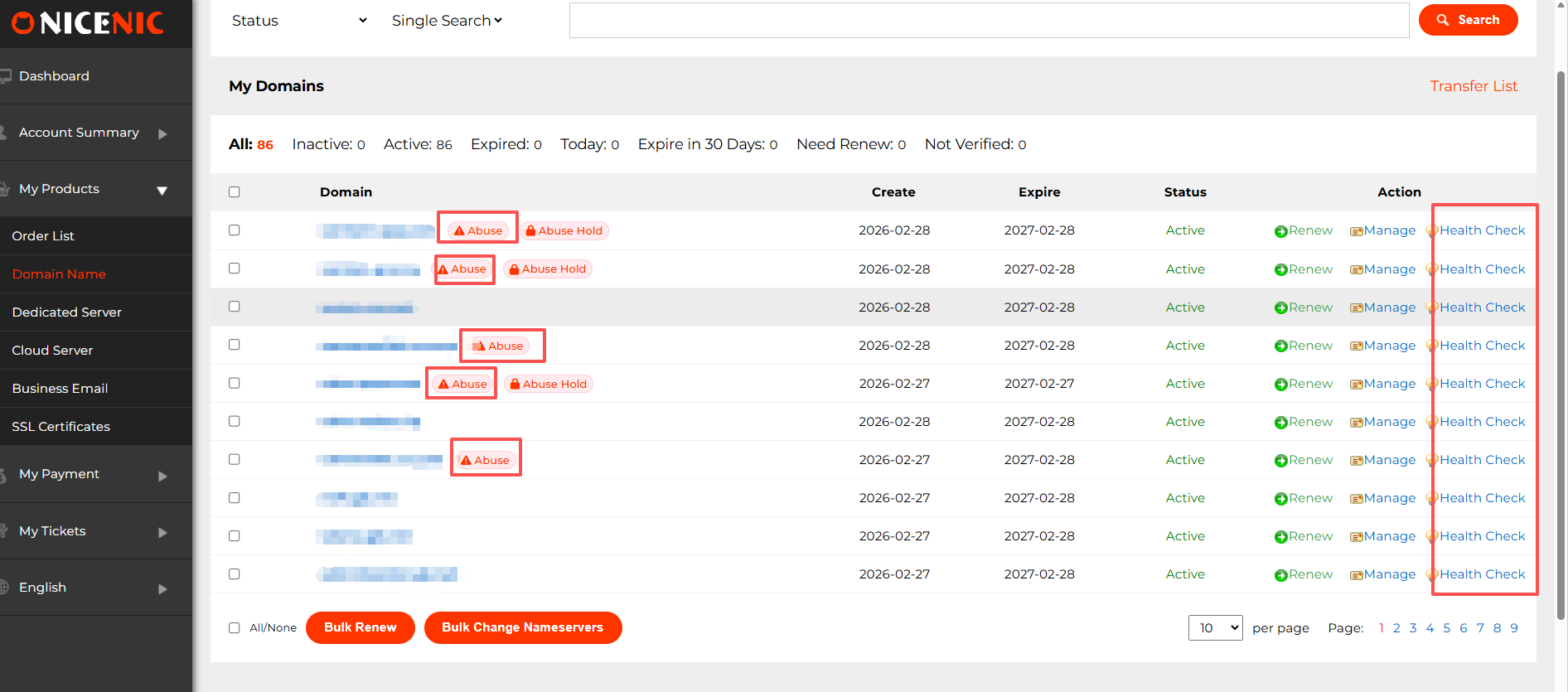
My Account > My Products > Domain Name
Step 2: Locate the Domain with the Abuse Tag
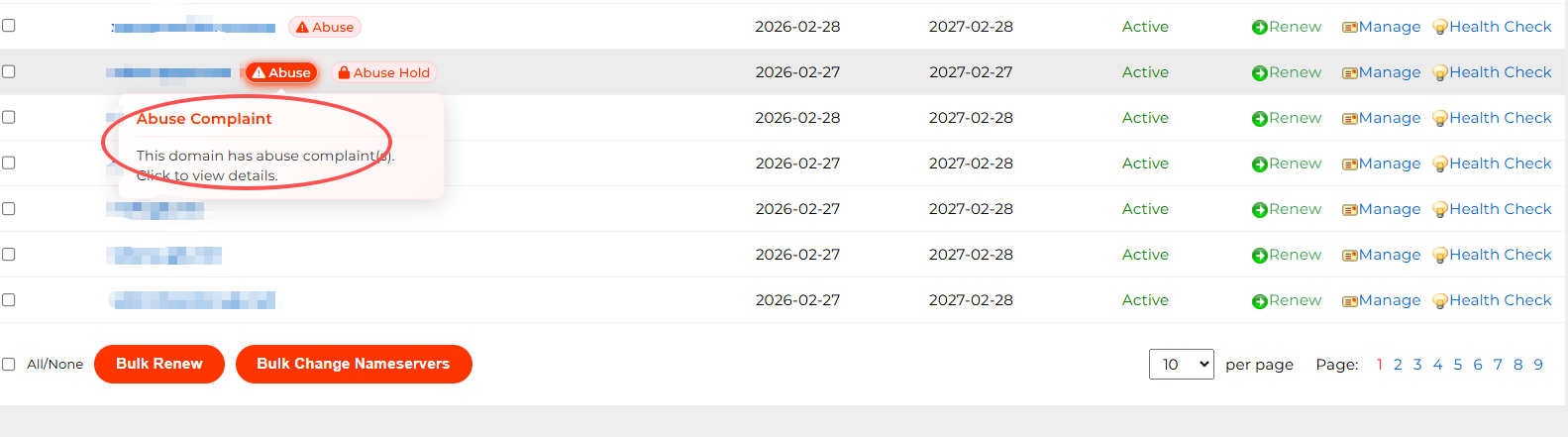
In your domain list, you will see domains marked with the "Abuse" (red triangle icon next to the domain).
You will also notice that each domain has a "Health Check" button at the end. Clicking this will also take you to the relevant page where you can view more details.
Step 3: Generate the Abuse Complaint Summary
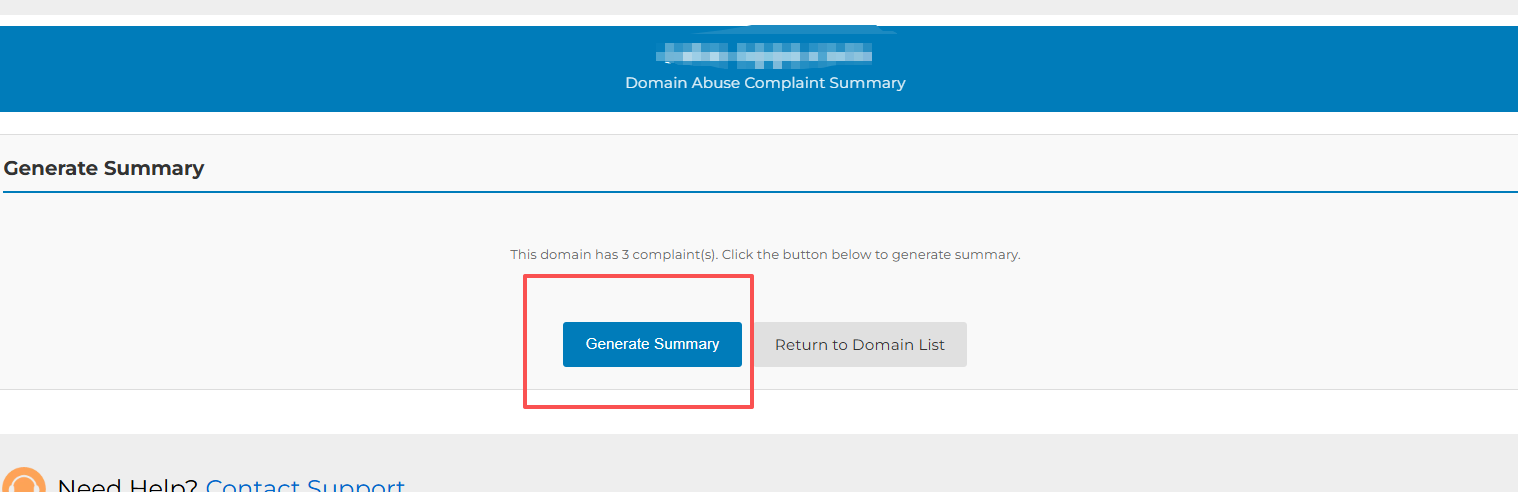
1. Click "Abuse" icon > Click the "Generate Summary button" (as shown in the image)
and the system will generate the Complaint Summary Report for that domain.
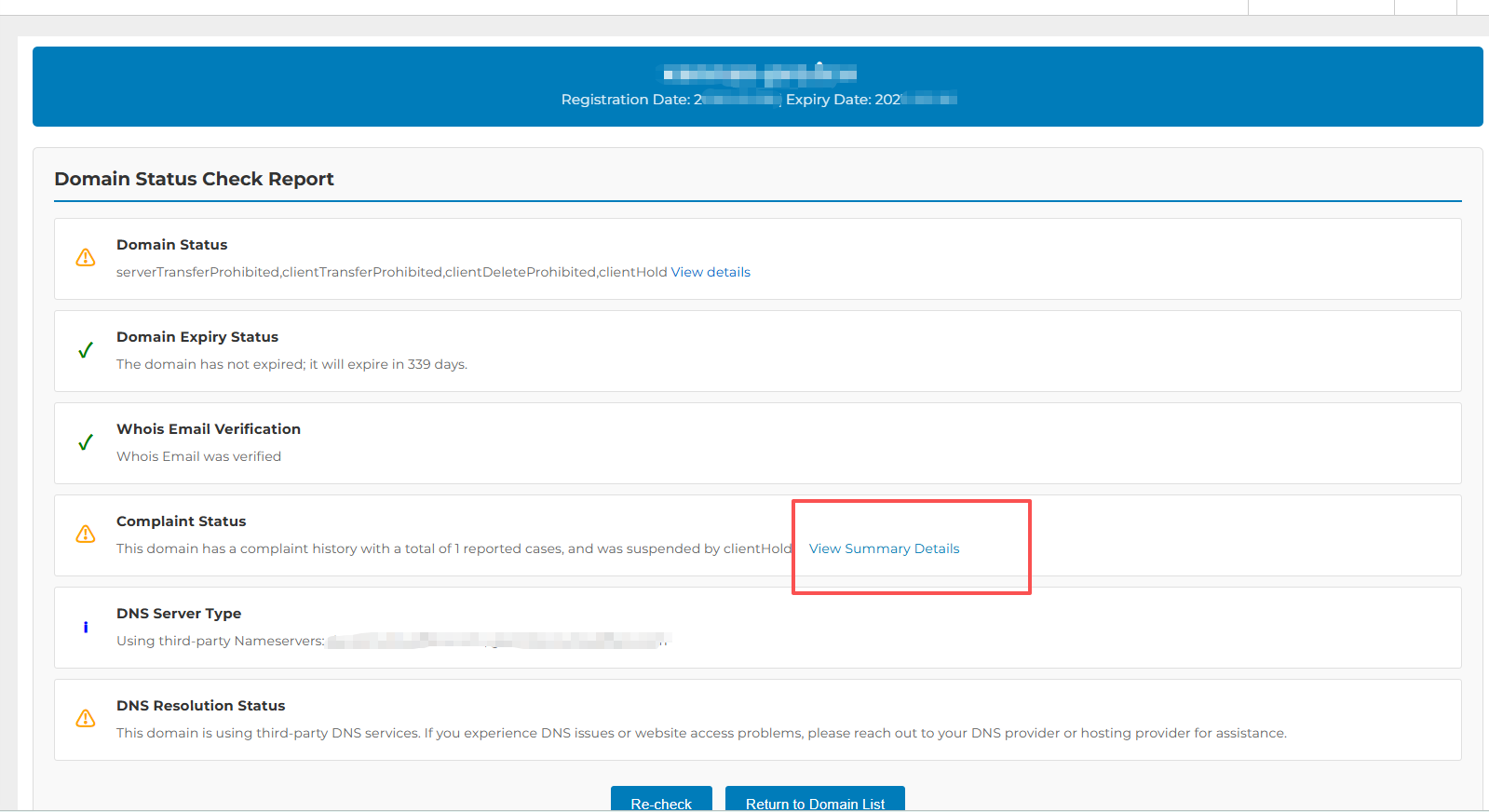
2. Alternatively, you can click on the "Health Check" > Domain Status Check Report page > View Details > Complaint Summary Report
Step 4: View the Detailed Complaint Report
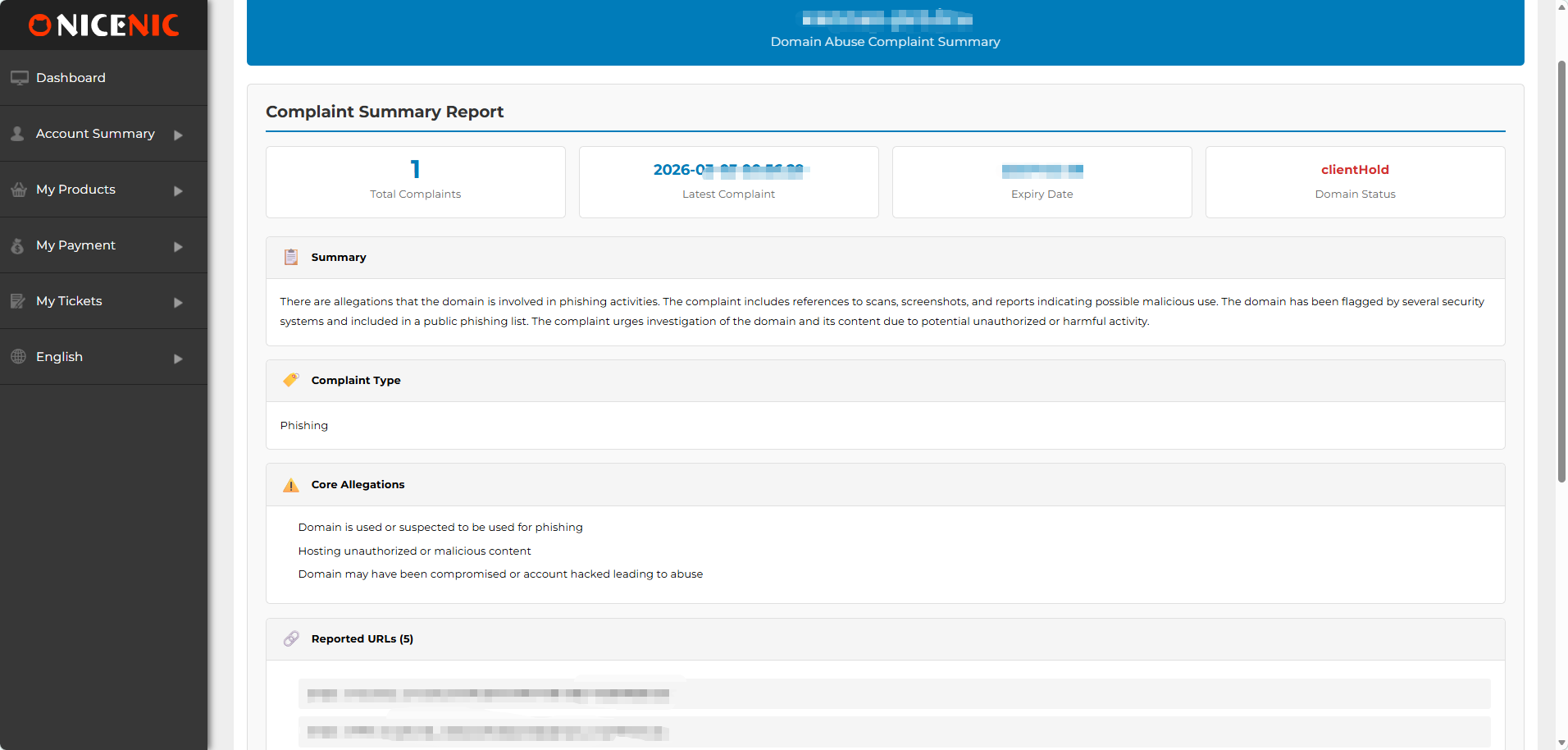
The generated Abuse Complaint Summary will display the detailed abuse complaint history, including:
Summary: General overview of the complaint
Complaint Type: For example, Phishing, Malware, etc.
Core Allegations: Specific allegations related to the domain
Reported URLs: Links to the reported malicious websites
Targeted Brands / Victims: Brands or individuals affected by the abuse
Conclusion
By following these steps, you can easily view the Abuse Complaint Summary for any domain marked as Abuse and take appropriate action. This summary will help you understand the nature of the complaints and decide the best course of action to resolve the issue.
Related NiceNIC Guides
- How to Keep Your Domain From Being Compromised
- How to Respond to a Domain Abuse Complaint
- What clientHold and serverHold Mean
- What Domain Status Codes Mean
If the issue continues after you complete the checks above, submit a NiceNIC support ticket with the affected domain or product, the exact error message, the time of the issue and the troubleshooting already completed.